
From Phone Call to Calendar: How a Booking Lands in Cal.com, Calendly, or Jobber
By Right On Call ·
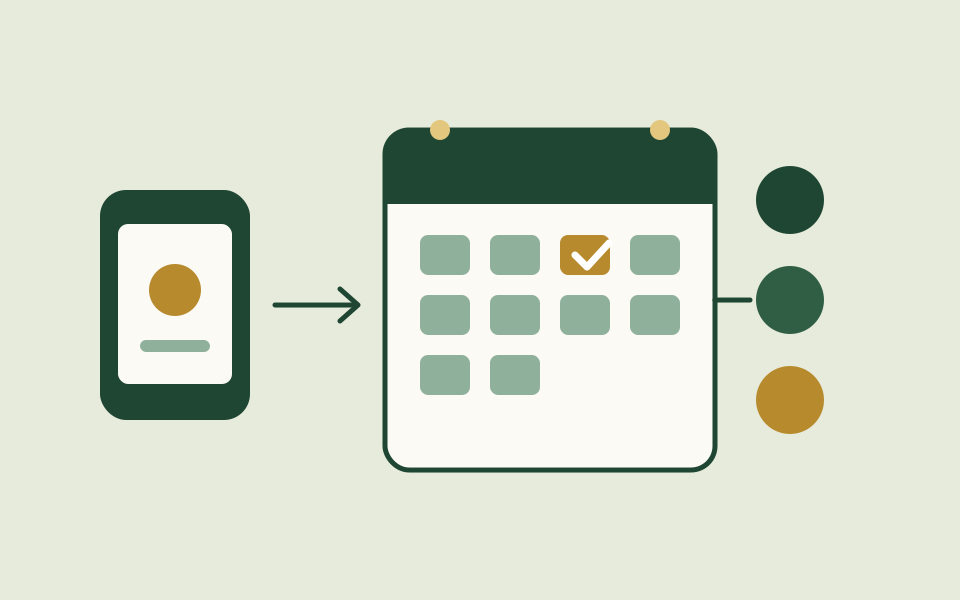
Owners are right to be wary of any tool that adds a second place to check. The test for a receptionist is whether a booked call shows up in the calendar you already run, with the right length, the right address, and no double-booking. Here is how that works for the tools that are live today, and where it stops.
Connect once, from the dashboard
Cal.com and Calendly both connect from your dashboard by sign-in, with no key to paste. After connecting, you pick which event type the receptionist books against and save it. Connecting alone is not enough. Until an event type is saved, there is nothing for it to book into.
The event type you save sets the visit length. A one-hour type is offered as one hour. Change it in the dashboard and the next call uses the new length, with no redeploy.
What happens during the call
The receptionist can only offer a time the calendar returned. It reads the weekday and date straight off the slot, in your time zone, instead of working out dates itself. Before it books, the slot is checked again against live availability, so a time that was taken in the last minute is not booked twice.
It confirms once on the call, in one sentence with the time, the street, and where the text goes. Then it books on the caller’s yes. The full details, including the appliance and the brand and model it recorded, arrive by text after the call, and the customer replies YES or corrects anything.
Your booking questions get answered from the call
Cal.com event types can carry their own required questions, the same ones your public booking page asks. The receptionist answers each required, visible question from what the caller said. A dropdown gets the option that names the appliance, or Other. A free-text box gets a one-line job summary. A brand or model question gets what the caller gave, or “Not given on the call”. Phone and address fields get the caller’s.
There is one limit worth knowing before you set this up. It will not answer a required yes/no, number, email, or URL question. An event type with one of those required cannot be booked by the receptionist, and those calls go to manual follow-up. Make those questions optional on the event type you hand it.
What Jobber receives
Jobber connects from the dashboard too. For each call, the receptionist finds or creates the client and creates a job with the details it took. It does not assign a technician, so dispatch stays with you. It is a connection you make from our dashboard, and we do not describe it as a Jobber App Marketplace listing, because it is not one.
Housecall Pro, ServiceTitan, AppFolio, and Buildium work the same way: we build the adapter during setup. One adapter is included on the Managed plan, and a build beyond that is quoted before we start.
When the calendar says no
Sometimes the calendar refuses a time or cannot be reached mid-call. The call is kept with the caller’s name, full address, job, and the time they agreed to, marked Not confirmed on the dashboard. The caller is told the time is requested but not confirmed yet.
Nothing holds that slot until you book it. You mark the call booked or not booked on its page, or the customer confirms by replying YES to the shop’s text. A call that ends this way is a task for you, and the dashboard says so rather than counting it as a clean booking.
The booking path is short: connect, save an event type, keep the required questions answerable, and watch the Not confirmed list. If your tool is not named here, ask. We build the adapter for it during setup, and we will tell you the cost before we start.
Where this applies
Ready to stop missing calls?
Get a free missed-call audit and see exactly what an AI receptionist would catch for your business.
Get a Free Missed Call Audit